
The CurriculumEngine.ai user interface is designed to gather all of the relevant details of your teaching use case, in order to generate materials that are ready for use in your classroom! After signing up for free, follow these steps to customize and generate your materials.
Step 1: Curriculum
The Curriculum tab anchors your project to a specific educational framework, ensuring every piece of content generated is standards-aligned from the start. Select your framework first, then narrow down to the appropriate program, grade level, and subject.
- Choose your curriculum framework: Common Core, AP (US), IB, or IGCSE
- Select your grade or year level (e.g., Grade 7, MYP 3, DP 1)
- Choose your subject (e.g., Mathematics, History, Biology)
- For IB, select your program: PYP, MYP, or DP
- For IB MYP/DP, select your subject group and specific course
- For IGCSE, select your examination board (CAIE, Oxford AQA, or Pearson Edexcel)
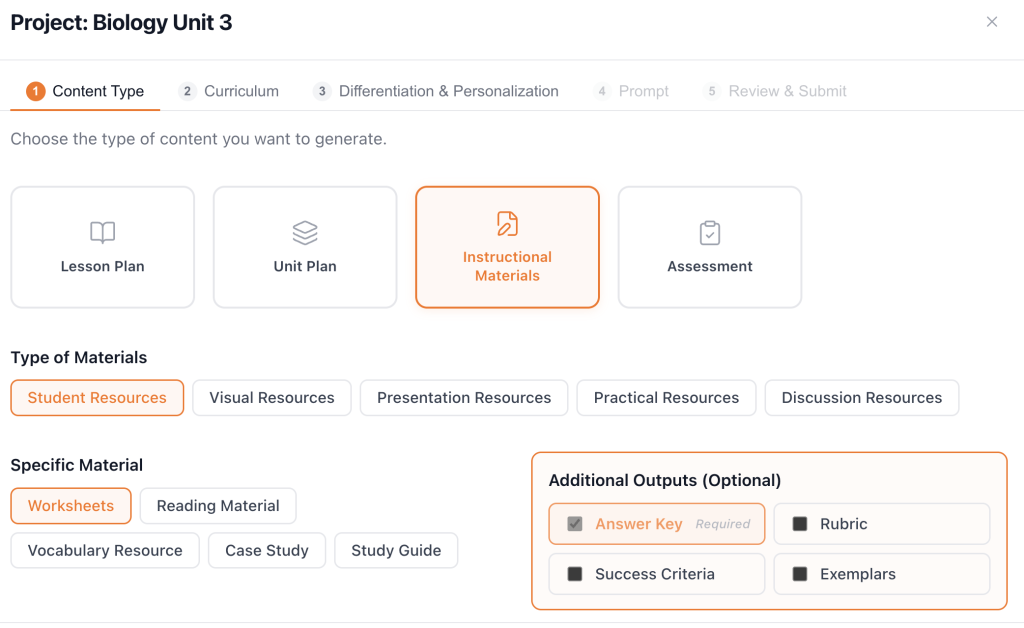
Tab 2: Content Type
The Content Type tab defines the format and structure of what gets generated. Once you select a top-level type, additional options specific to that format will appear below.
- Lesson Plan — choose a lesson type (Regular, Lesson Sequence, Revision, or Intervention) and your class length (30–120 min)
- Unit Plan — choose a duration (Short: 1–3 weeks, Standard: 4–6 weeks, or Extended: 8+ weeks) and a unit type (Inquiry, Interdisciplinary, Project-Based, or Exam Prep)
- Instructional Materials — choose a material category (Student, Visual, Presentation, Practical, or Discussion Resources) and then a specific material (e.g., Worksheets, Graphic Organizer, Presentation Slides, Lab Activity)
- Assessment — choose the assessment type (Formative, Summative, or Simple Quiz), a sub-type (e.g., Exit Ticket, Unit Test, Mock Exam, Multiple Choice), and the assessment length
- Optionally add Answer Key, Rubric, Success Criteria, or Exemplars as additional outputs
Tab 3: Differentiation
The Differentiation tab lets you tailor the generated content to the specific needs of your learners — all fields here are optional, but even one or two selections can meaningfully shape the output. This is where CurriculumEngine.AI goes beyond a simple document generator.
- Language Support — set a CEFR level (A1–C2) and choose scaffolding options such as word banks, sentence starters, simplified vocabulary, key vocabulary definitions, or multilingual support
- Learner Needs — set learner readiness (Below Grade, On Grade, Above Grade, or Mixed Ability) and flag specific needs such as ADHD, Dyslexia, Autism, visual supports, or chunked instructions
- Pedagogical Approach — choose a teaching model such as GRR, Inquiry-Based, Concept-Based, Direct Instruction, or the 5E Model (available for lesson sequences and unit plans)
- Skills Development — select ATL skills to embed: Communication, Research, Thinking, Self-Management, or Social
- Cognitive Demand — choose Bloom’s Taxonomy levels (Remember, Understand, Apply, Analyze, Evaluate, Create) and set a grouping format (Individual, Pair Work, Small Group, or Whole Class)
Tab 4: Learning Requirements & Objectives
The Prompt tab is where you brief the AI on exactly what to teach and how — the more specific you are, the more precisely the output will match your classroom needs. Think of it as writing a quick note to a very capable teaching assistant.
- Describe what you want students to learn or achieve by the end of the lesson or unit
- Specify the topic, concept, or content area to be covered
- Include any learning resources, teaching strategies, or real-world contexts you want reflected
- Add measurable learning objectives or outcomes (e.g., “Students will be able to…”)
- Reference any public URLs or existing materials you want the AI to draw from
Tab 5: Review
The Review tab gives you a full summary of your project before anything is generated, along wiur preferred output file formats. Take a moment here to double-check everything before clickingGenerate.
- Read the auto-generated summary describing what will be created and for whom
- Review the list of files that will be generated and the credit cost
- Set your preferred document format: MS Word (.docx), PDF, or Plain Text
- Set your preferred slides format: PowerPoint (.pptx) or PDF
- Set your preferred visual format: Standard (.png), Dynamic (.svg), or Static (.pdf)
- Choose a color scheme: Printable (light color), Colorful (rich backgrounds), or Monochrome (
- Expand Project Selections to verify your curriculum, content type, and differentiation choices
- Click Generate Content when you’re ready — the AI agent network will take it from there